
Understand ingest progress, speed, and recovery
Use this guide while a copy is running or when its result needs attention. Start from the ingest window or open Workflow Help below Export. Keep the source connected until copying has finished or stopped.
Read the current stage
- Look at the status text and current filename. Check the completed/total count and the elapsed and remaining times.
- Distinguish copying from verification and metadata processing. Verification reads both source and destination. Metadata preparation or stamping can add processor and storage work after bytes have copied.
- Open Workflow Help for measured ingest throughput and available source/destination disk facts. On macOS these can include the volume name, connection protocol, and solid-state status.
- Treat unavailable facts as unknown. The app does not identify a cable's rating, negotiated link speed, CPU utilization, exact card tier, or a proven bottleneck.
- If comparing equipment, use the same files and options and change one component at a time. A different verification or metadata setting changes the workload.
Average MB/s includes elapsed processing time for the job. It is not the card manufacturer's benchmark or the peak USB speed. A reader, cable, hub, port, source card, destination disk, file count, and processing options can all affect the result. Estimates can change when the next stage begins.
For a SHA-256 explanation, an illustrative speed calculation, and a sideline-to-office archive workflow, see copy verification guidance. Verification adds full reads of the source and copy; a lower overall MB/s during this stage does not mean the original copying stage slowed down.
Work while ingest continues
- Choose Hide Ingest. Browse another folder while the job continues.
- Use the floating Show Ingest control to return to progress and results.
- Keep the application open. Hiding is not quitting. Hidden completion does not redirect the folder you are browsing.
- To stop, choose Cancel Ingest and confirm Stop Ingest. If you only wanted the window out of the way, choose Hide Ingest instead.
Inspect the final result
Completed copies remain after cancellation or failure. The app does not automatically roll back every destination file. Read the result before dismissing it, locate failed paths, and inspect any partially created numbered folders. Keep the source and retry into an unused destination or folder numbering after resolving the cause.
A card can correctly remain mounted even with automatic eject checked: a partial selection, separate source-folder jobs, an error, or an unsupported disk prevents whole-disk eject. Confirm the reported outcome, then use Finder to eject once the app is no longer reading it.
Troubleshooting
For insufficient space, choose a destination with enough capacity and recheck the plan. For a disconnected card, reconnect it and verify the source path before a new scan. If preparation cannot read some folders, do not assume the listed files are a complete card inventory. For a slow but advancing job, read the stage and filename rather than repeatedly cancelling. See card ingest, folder organization, and support.
When folder planning cannot finish
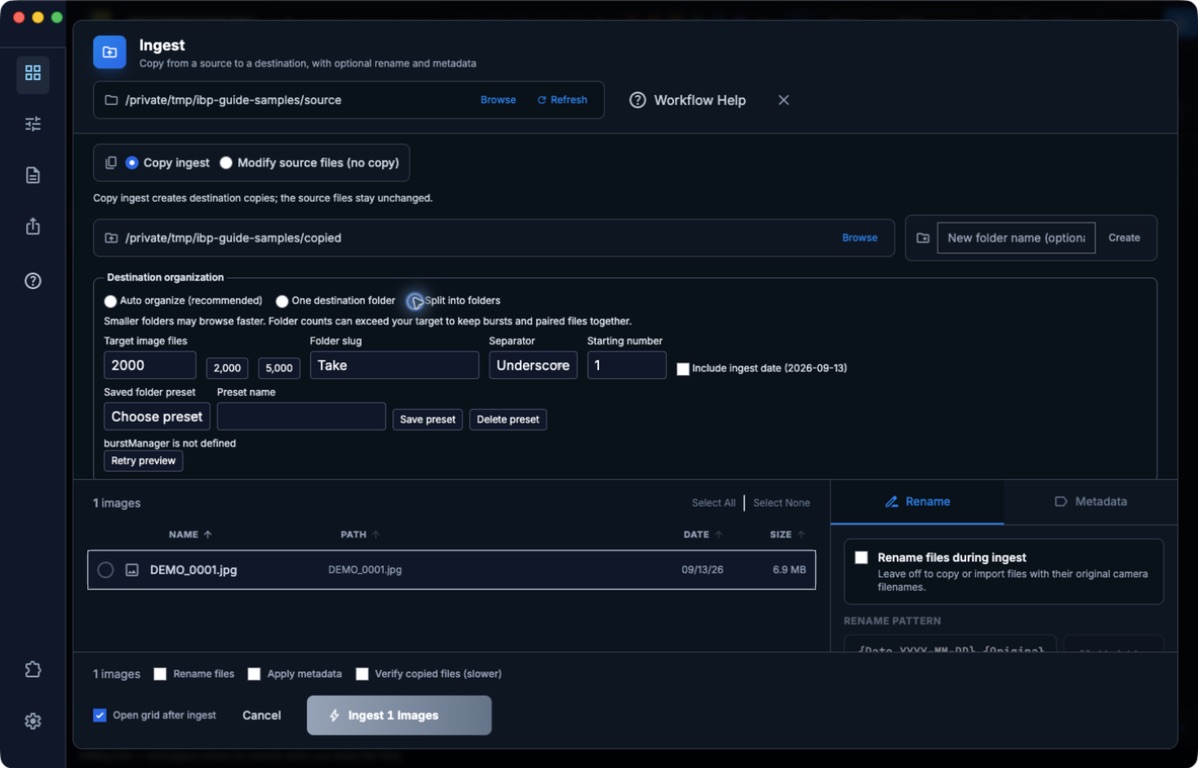
Actual macOS development-app failure recorded September 13, 2026. The disabled start button prevents this unprepared split from running.
- Read the preview error before starting a split job.
burstManager is not definedis an application error, not evidence that the card is damaged. - After installing a corrected build or restarting, use Retry preview and confirm real destination folders appear. Repeatedly retrying the same unchanged build is not a repair.
- For a manageable batch, choose One destination folder and check free space. This bypasses splitting; it does not fix the planner. Keep the source and inspect the completed copies.
- Report your version, the exact error, selected file count, and folder mode. Large automatic organization uses the same planning path. Split and large-batch acceptance remain open until that error is fixed and retested.