
Insert a camera card and ingest your photographs
Ingest means copying photographs from a card or source folder into a working folder. This walkthrough uses Copy ingest, which leaves source files unchanged. You need a compatible card reader, a mounted card, and a writable destination with sufficient free space. Keep the card until you have checked the copies and made your normal backup.
1. Insert the card and find it
- Connect the card reader to the Mac, then insert the card fully. Use the reader appropriate to the card type; a similar-looking slot does not guarantee compatibility.
- Open Finder and look under Locations for the card. Select it and confirm that its image folders are visible, often inside
DCIM. - If the card is absent from Finder, check the reader connection, cable, port, and card seating. IBP cannot ingest a disk macOS has not mounted. Do not format the card to make it appear.
- Open ImageBrowserPro. In the header, open Ingest → Disk Ingest. If an automatic card prompt appears, confirm that it refers to this card before using it. Automatic intake depends on your Ingest preferences.
2. Choose the source and destination
- In the ingest window, click Browse beside the source path and select the card or the image folder you intend to copy. Wait for preparation to finish. Read any unreadable-folder or scan warnings before proceeding.
- If the source contains several image folders, choose whether to ingest them together or work through individual folders. Choose all together when you intend one ingest for the entire card. A selected folder is not automatically the whole disk.
- Keep Copy ingest selected. Modify source files (no copy) is a different operation: it can rename or stamp originals in place and does not make a backup copy.
- Click the destination chooser. Select or create a folder on your working drive, for example
Pictures/Assignments/Practice Event. Confirm with Ingest Here in the system picker. - Read the displayed destination path and any subfolder setting. Use a destination outside the card/source tree. Resolve insufficient-space, collision, or invalid-destination messages before starting.
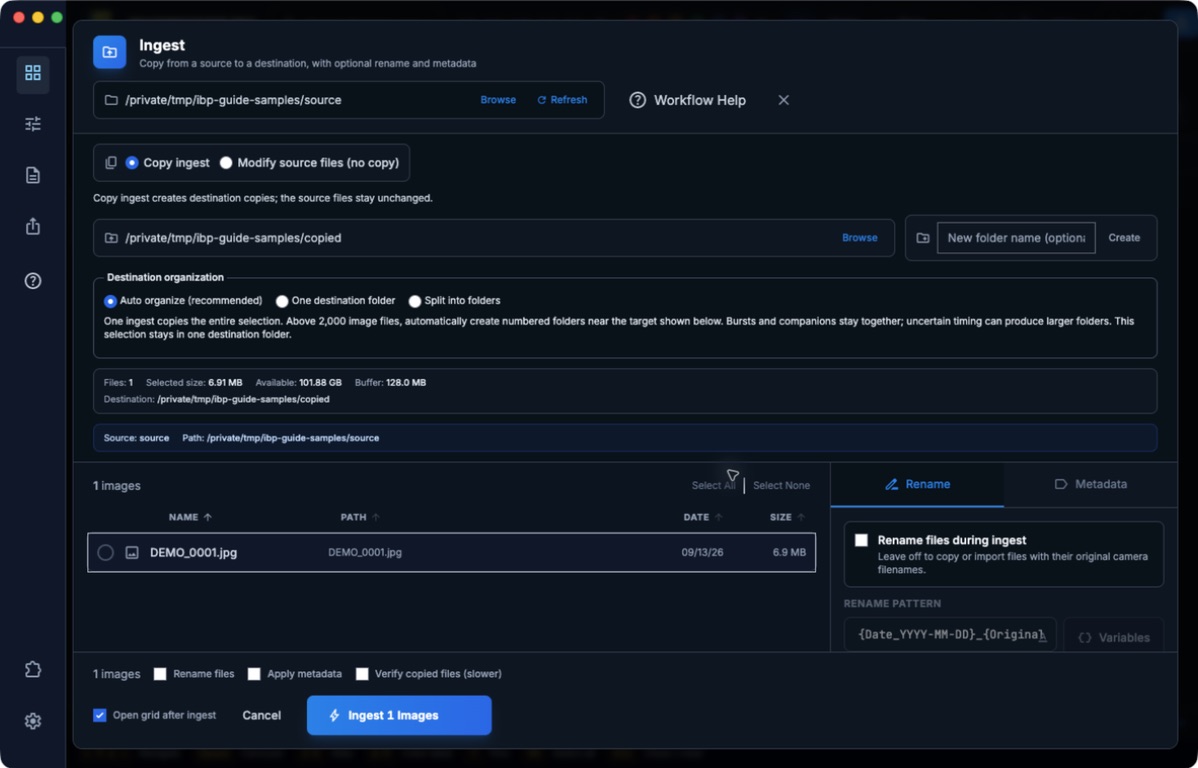
ImageBrowserPro running on macOS with one disposable sample file. Copy ingest, separate source/destination paths, and Auto organize are selected. No rename or metadata stamping is enabled.
3. Review the options
- Rename files is optional. Leave it unchecked to retain camera filenames. If enabled, review the filename example, numbering, and shared event text before copying. See naming and organization.
- Metadata stamping is optional. Load the intended template, review names, date, credit, rights, and selected fields. Shared information should be true of every affected image; write individual action captions later.
- Auto organize (recommended) is the initial folder mode. Above 2,000 selected image files, it targets numbered folders of 2,000 images while keeping burst/companion groups together. Use One destination folder to opt out or Split into folders for manual targets. Inspect the folder preview.
- Verify copied files (slower) compares source and copy checksums before metadata stamping. It adds reads and processing time. Choose it when you want that additional copy check; it does not replace checking the finished photos or keeping a backup.
- Eject disk after ingest (all images) starts checked for supported disk copy sources. It ejects only after a successful whole-disk image copy in this ingest. Partial selections, separate folder jobs, cancellation, errors, or unsupported disks stay mounted.
- Open grid after ingest controls whether visible completion opens the copied work. For split ingest, it opens the first output folder. The other folders remain available through the folder tree.
What SHA-256 verification means
SHA-256 reads every byte of a file and creates a digital fingerprint: a code of 64 hexadecimal characters. IBP checks the source and destination file sizes, then compares their SHA-256 fingerprints. Matching fingerprints give extremely high confidence that the copied contents match the original. Even a one-byte change produces a different fingerprint. Renaming a file does not change its contents; writing metadata inside it does, so IBP verifies before applying metadata.
Verification runs after each file is copied. If the check fails, IBP attempts to remove that unverified destination copy, reports the file as failed, and continues with the other files. Keep the source and resolve the error before retrying. SHA-256 checks transfer integrity; it does not judge image quality, repair a damaged source, or replace a separate backup.
Sideline deadline or office archive?
On a sideline deadline, getting photographs ready to select and transmit may take priority. Leaving Verify copied files (slower) unchecked avoids the extra full read of the card and destination. That trades the additional checksum assurance for a shorter ingest. Keep the card, inspect the working photos, and make your normal backup.
Illustrative timing, not an IBP benchmark: copying 10 GB at a sustained 100 MB/s takes about 100 seconds. Verification then reads another 10 GB from the source and 10 GB from the destination. IBP reads those two files concurrently, so if each drive sustains 100 MB/s independently, verification could add about another 100 seconds. The total would be roughly 200 seconds, and the displayed overall throughput roughly 50 MB/s. Shared connections, slower cards, processor work, small files, and metadata can increase the time; faster hardware can reduce it. Actual results vary.
Back at the office, recopy from the retained original card into a separate, unused archive folder with verification enabled. Read the completion result, check the images, and make a separate backup before reusing the card. This confirms the new archive copy matches the source at ingest time and adds confidence in file integrity. It does not retroactively verify the earlier sideline copy or guarantee future disk reliability. Copying from the sideline folder instead only verifies against that folder, so any existing damage there can be copied too. Keep later edits and captions separately; a fresh card copy will not include them.
4. Start and monitor
- Confirm the source, destination, and image count once more. Selected rows restrict the job when a selection is present; otherwise the listed images are the working batch. Read the count on the start action.
- Click Ingest 1 Images (the number changes with your batch). Settings become unavailable during processing. Keep IBP open and the source connected.
- Watch the current filename, counts, status, elapsed time, and remaining estimate. Copying, verification, and metadata work are different stages. A fast copy can still be followed by processing.
- Choose Hide Ingest if you need to browse other work. Copying continues. Use Show Ingest to restore progress and results. Hidden completion preserves the folder you are browsing.
- If you must stop, choose Cancel Ingest or close the window and read the confirmation. Keep ingesting, Hide Ingest, and Stop Ingest have different effects. Stopping retains completed work and can leave partial output folders; do not disconnect the card until processing has stopped.
5. Verify and finish
- Read the completion result, including failed or skipped files and the eject outcome. A completion panel is not a claim that every requested file succeeded.
- Open the destination folder in IBP or Finder. For split ingest, inspect all numbered folders, not only the first one opened automatically.
- Open several copied photos, including files near the start and end of the job. Check filenames, visible image content, and any template metadata you applied. Confirm the copied count against the job result.
- If the disk stayed mounted, wait until IBP has stopped using it, then eject it through Finder. Disconnect only after macOS reports it is safe.
- Keep the card and make your normal backup until you have verified the working copy. Start culling from the destination, not from the card.
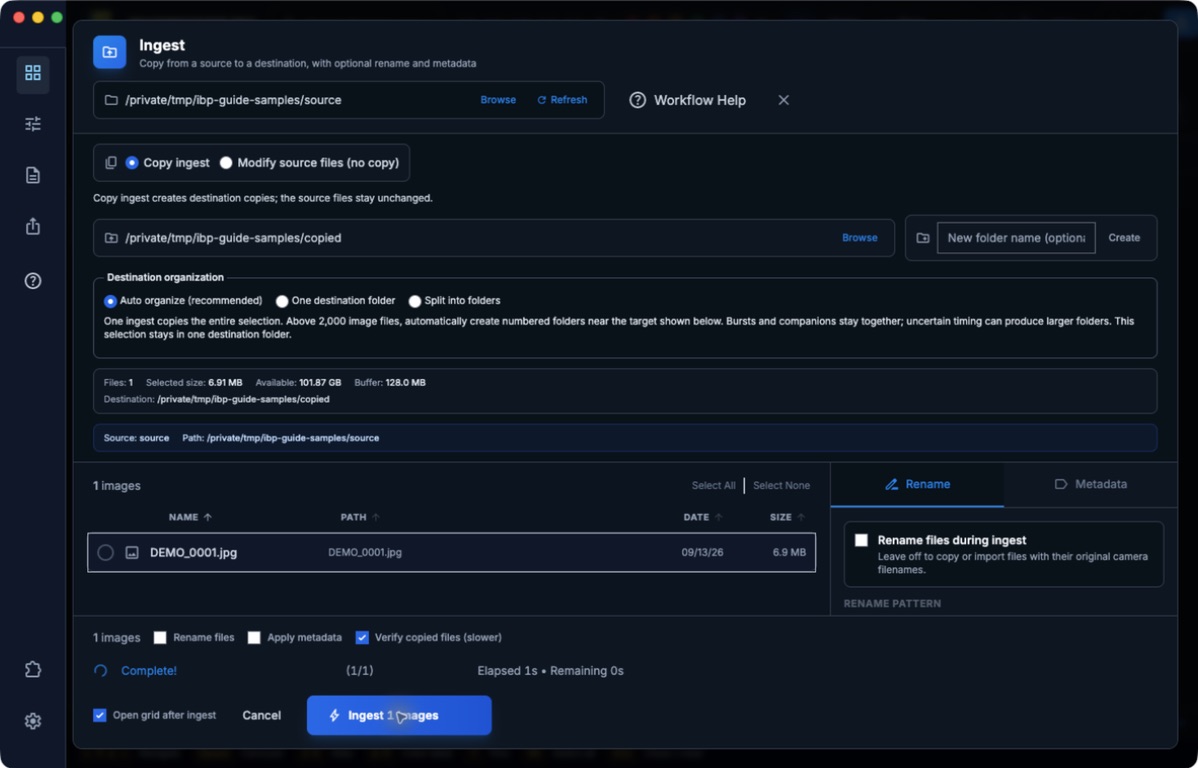
The sample copy completed. Read the result and inspect the actual destination; do not start the same job again simply because the start button is still present.
If the job fails
An unreadable or cancelled preparation cannot be treated as a complete scan. Retry preparation after fixing the source connection. For copy failures, retain the source, read the failed filenames, and inspect partial destinations. Choose an unused output folder or unused split numbering before retrying; do not blindly run the same job over completed files. See progress and recovery.
The native screenshots use a disposable local source. A one-file copy with verification enabled completed, and source/copy SHA-256 hashes matched. This does not verify a physical card, disk eject, large-batch timing, or metadata stamping.
Current split-preview limitation
During the September 13 macOS development-app check, Split into folders stopped at burstManager is not defined and disabled Ingest. Do not treat that as a completed plan. Use Retry preview after updating/restarting the app; if the error remains, choose One destination folder for a manageable copy and report the error. Automatic organization above 2,000 images also depends on split planning, so check that preview before a large job. See split recovery.