
Create and reuse an IPTC metadata template
Photo Information Templates prepares reusable captions, event details, credit and rights. Saving keeps a template on this Mac; applying it to photographs is a separate action. Start with disposable local copies and verified assignment information. These instructions describe the October 3 development workflow; an older installed beta may show the previous editor.
Build a template
- Open Settings → IPTC Templates → Open IPTC Template Editor. Choose Metadata Template Wizard if you first want to prepare shoot answers, filenames and caption phrases.
- Enter a Template name, or choose an entry from Saved templates. New starts a fresh draft. Try Demo Template loads fictional newspaper details; replace every example before real delivery.
- Choose 1. Build template. Fill Image Content, Event and Location, Image Rights, and People and Classification. Expand Advanced IPTC Fields only when needed.
- Default fields controls visible fields. Hidden fields keep their values and remain part of the template. Review dates as well as text: a reusable template may otherwise retain an old assignment date.
- Use Build caption with blanks for an explicitly reviewed sentence. Person and Does what belong to the caption draft. Shoot fields reuse saved shoot answers. Insert the resolved sentence deliberately; the saved caption is fixed text.
- Choose Save. Saving a loaded name updates it; a different name saves a copy and asks before replacing an existing entry. Confirm the saved name and reopen it before relying on it.
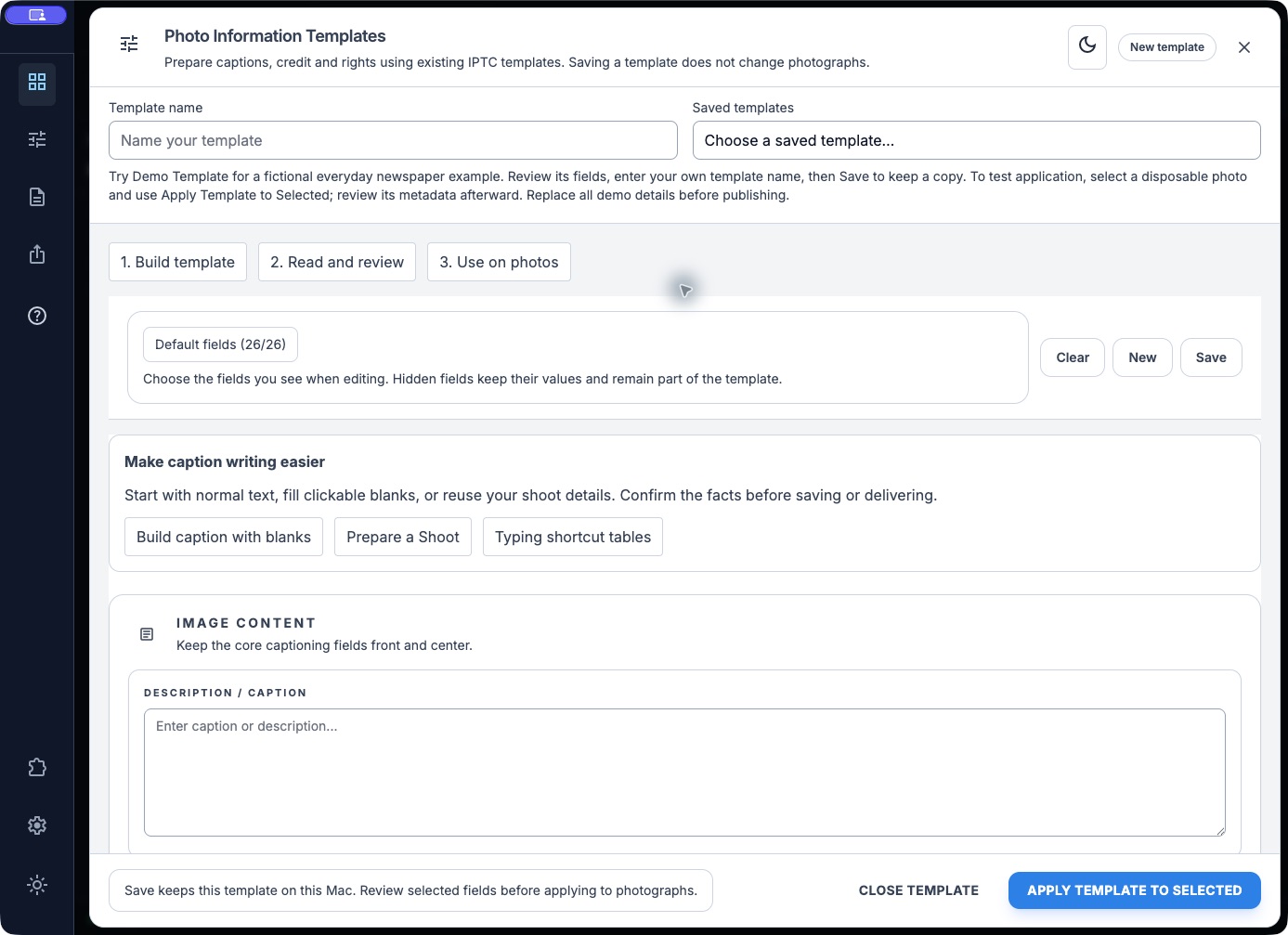
October 3 native development-app capture. The controls are real; this blank draft has not been applied to photographs.
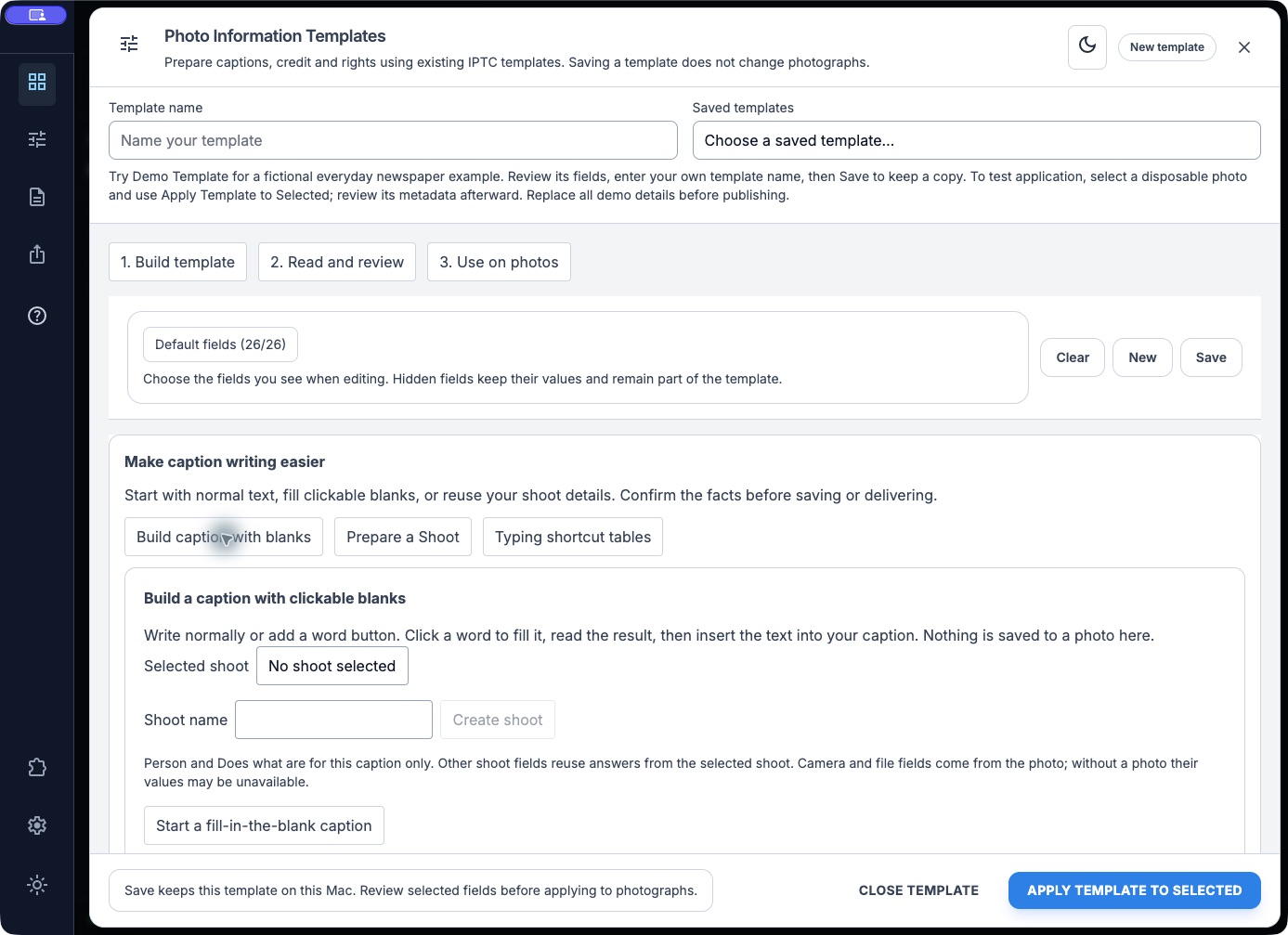
Caption result must be explicitly inserted; nothing is saved to a photo in this panel.
Read the complete template
Choose 2. Read and review. The readable sheet shows drafted or saved values, including hidden and imported fields, plus completeness reminders. Review the caption, photographer, credit, rights, people, event and date. These reminders cannot establish factual accuracy or identify a person. Edit template information returns to editing.
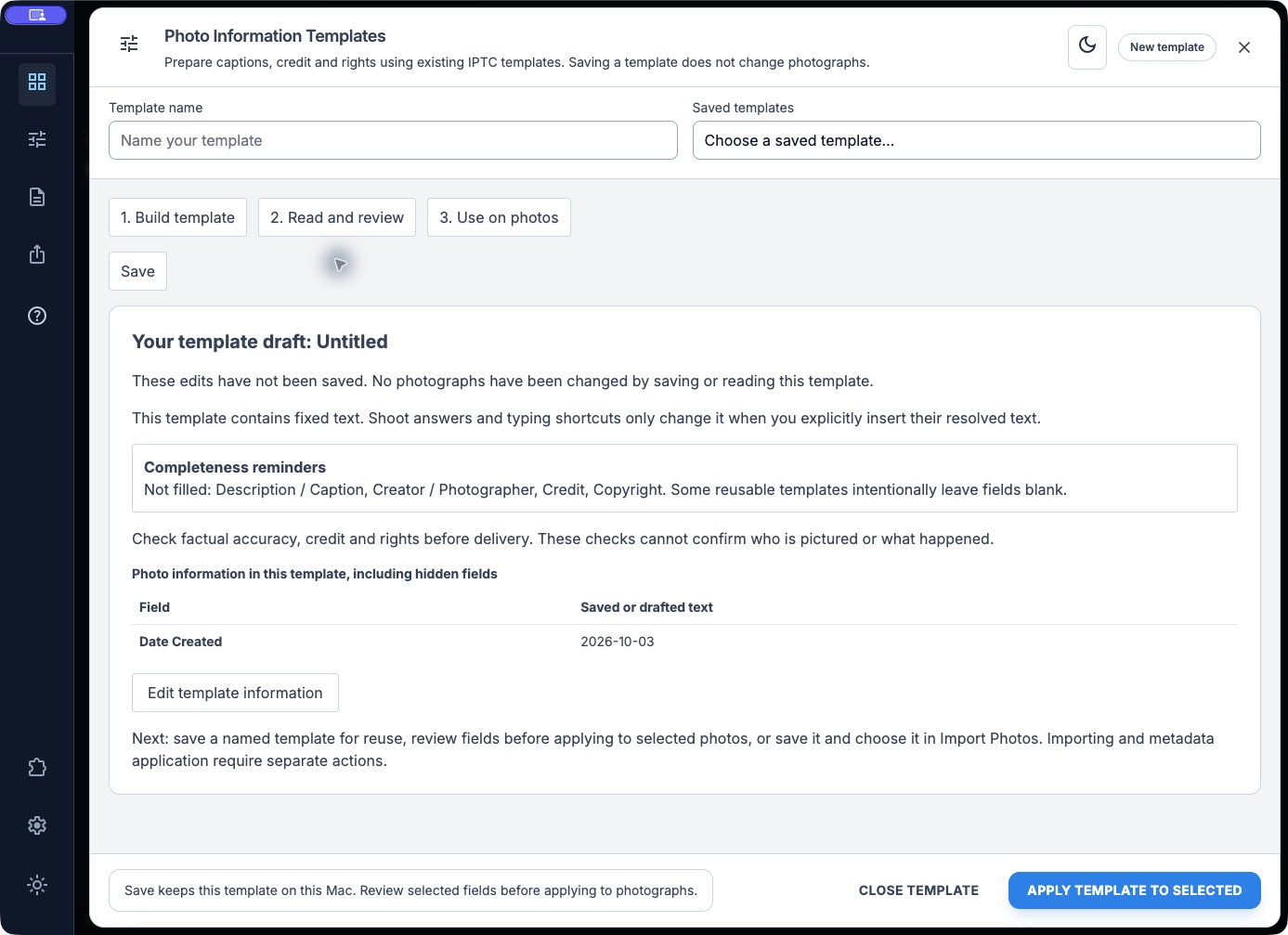
Reading and saving do not write image metadata.
Apply only reviewed fields
- Select the intended photographs in the grid. Open Apply Metadata Template, or the right-click template action, and review the chosen template.
- In the template editor choose 3. Use on photos. Confirm the selected-photo count and every checked field group.
- Checked fields replace those values on every target photo. Unchecked fields preserve existing values. A checked empty field can clear a value: only select it when clearing is intentional.
- Choose Apply reviewed fields when the targets and replacements are correct. Reopen metadata on a disposable sample and verify both changed and preserved fields before a large batch.
- For ingest, save a named template and choose Open Import Photos. This prepares a temporary import draft. Review its selected stamping fields in Import Photos; opening the window does not copy files or apply metadata.
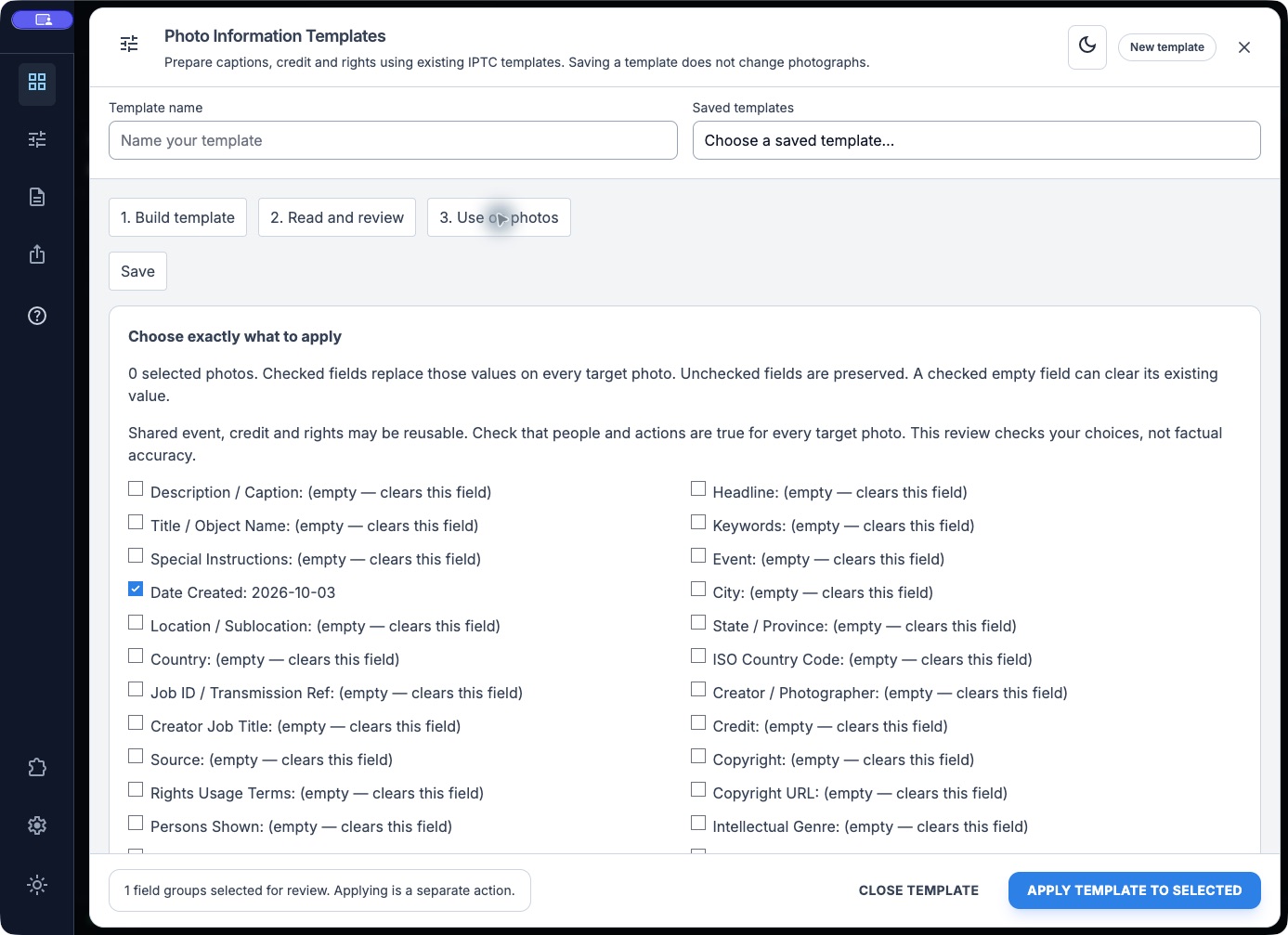
No photographs were selected or modified in this capture.
Recovery and related tools
Keep a failed-save draft open and read the error. Check hidden fields when values seem missing. Clear clears draft values; it does not delete saved templates. A template is not a backup of photographs. Prepare a Shoot and Typing shortcut tables open separate preparation tools. See Shoot Setup, code replacements and ingest options. Ordinary template creation does not require an AI provider.