
Present images and slides together
Presentation Mode brings a PowerPoint slide and the live ImageBrowserPro photo browser into one audience window. While teaching, you can move from a slide to the grid or a selected photograph with the Audience layout switcher. You can search, sort, and review photos in IBP without leaving the presentation to swap between a separate image grid and PowerPoint window.
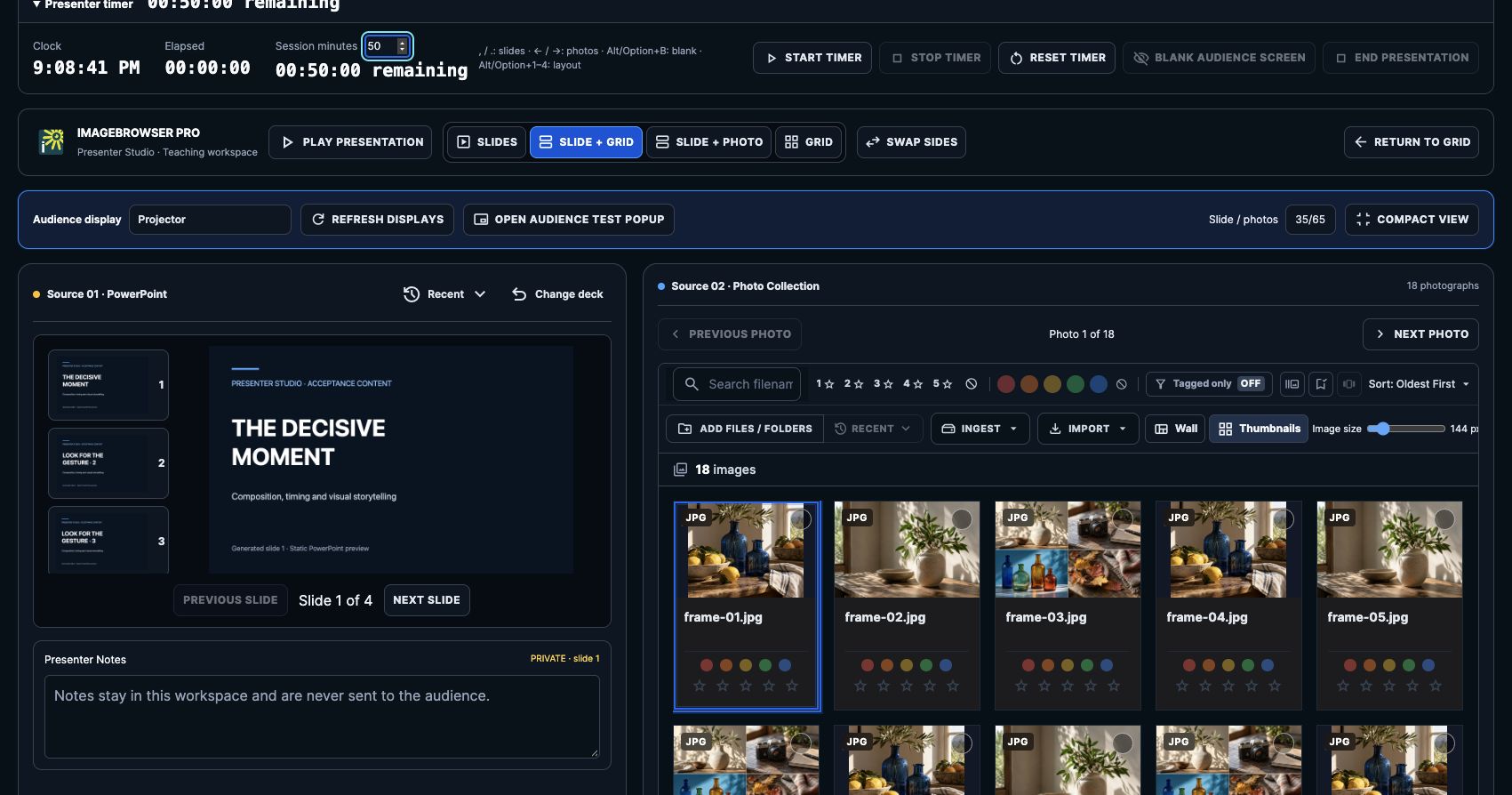
Development capture of Presenter Studio with AI-generated practice images and a generated sample slide. The current public beta may not yet include this Studio workflow; check the Presentation Mode button in your installed app.
Start a session
- Open a folder of photos in ImageBrowserPro. Review the filenames, captions, and other content before sharing your screen.
- Click Presentation Mode in the main left sidebar. Choose a PowerPoint deck if you want slides; the photo browser can be presented without one.
- Choose an Audience display and click Play Presentation. For a one-screen rehearsal, click Open audience test popup instead.
- Share only the ImageBrowserPro — Audience window in a call, or use an extended display. Keep the Presenter Studio window on your own screen so its notes and timer stay private.
PowerPoint slides are static previews. Animations and embedded media do not play in the audience window. Prepare and rehearse the deck before presenting.
Use the audience layout switcher
The four buttons in the Audience layout row change what the audience sees without ending the session:
| Layout | Audience sees | Use it when |
|---|---|---|
| Slides (Slide Deck) | The current PowerPoint slide | Explain a concept or assignment. |
| Slide + Grid | A slide beside the interactive IBP browser | Introduce a prompt, then find and compare photographs live. |
| Slide + Photo | A slide beside the selected photograph | Connect a specific image to the teaching point. |
| Grid (Grid Only) | The interactive IBP browser | Search, sort, select, and review images with the class. |
Click a layout button or press Option/Alt+1–4 in that order. In split layouts, use Slide / photos to change the space each side receives, Swap sides to reverse them, or drag the divider in the audience window. Use Fit IBP if the browser controls need to fit a smaller pane; 100% restores their normal size.
The audience window contains a working IBP interface. Use its grid, search, sorting, review marks, Import, Ingest, menus, and editing controls directly. The photo collection shown in Studio is your preparation workspace; the audience starts with those photos and then navigates independently. This is why you can keep one projected or shared window instead of alternating between PowerPoint and a separate image browser.
Keep the presentation under control
Use Previous photo and Next photo for the selected image, and the slide controls or , and . for PowerPoint slides. Option/Alt+B blanks or restores the audience window. Presenter Notes and the timer stay in Studio; notes last only for the current session and are not written to the photographs or imported from PowerPoint speaker notes. End presentation closes the audience window. Return to Grid closes Studio and returns to the main browser.
The carousel also has Compact View for presenting one photograph or slide at a time. Its optional Presenter Mode hides review clutter while keeping navigation and captions. The display-check patterns are a visual rehearsal aid; they do not calibrate a monitor or alter images. For a file to send to someone else, use HTML or PowerPoint export. For teaching marks over an image, use Draw.
Rehearse and recover
Check the first and last photo and slide, the readability of captions from the back of the room, and the fit of wide and tall images. If the audience window is missing, select the intended display again or use the test popup. If a shortcut does not work, move focus out of a text field and use the visible button. Physical projector, call-sharing, and installed-app behavior still need a rehearsal with the actual equipment and build.